 Support Center
Error Code R000-904-03
❌ Error Code R000-904-03 - Software ID Testing Failed
This guide explains how to resolve the IRS reject error R000-904-03, which occurs when the Software ID in the return header has not passed IRS testing for the tax year and form being filed.
❌ Error Details
Error Code: R000-904-03
Error Message: "Software ID in the Return Header must have passed testing for the form family and TaxYr."
What it means: The IRS rejected your Form 1040 e-file because the SureFire software ID hasn't been tested and approved by the IRS for this specific tax year and form.
Common cause: This usually happens when you're using an older or corrupted Form 1040 module that hasn't been re-registered with the IRS system.
⚠️ Before You Begin
You will need:
- Administrator access to your computer
- Internet access to download software updates
- About 15-20 minutes to complete the process
- The backup of your current return (just in case)
📋 How to Fix Error R000-904-03
Step 1: Locate the Form Files
Find and delete the corrupted 1040 form schema files.
- Open "This PC" or "My Computer" on your computer
- Navigate to the drive where SureFire is installed (usually C:)
- Navigate to the folder: UTS16\Control\Mef\Schema
- Replace "16" with your tax year if different (e.g., UTS23 for 2023)
- Path should look like: C:\UTS16\Control\Mef\Schema
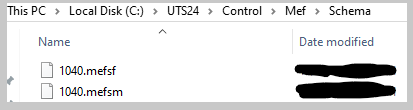
- In the Schema folder, find these two files:
- 1040.mefsf
- 1040.mefsm
Step 2: Delete the Corrupted Files
Remove the old Form 1040 schema files to force a refresh.
- Right-click on "1040.mefsf"
- Select "Delete"
- Right-click on "1040.mefsm"
- Select "Delete"
- Confirm the deletion when prompted
- Here's what the files look like:
Step 3: Uninstall the 1040 Module
Remove the 1040 form module from your SureFire installation.
- Close SureFire completely if it's running
- Open Windows Control Panel
- Go to "Programs" or "Programs and Features"
- Find "SureFire" or "TaxWise" in the list
- Click on it and look for an "Uninstall" or "Repair" option
- For detailed instructions on uninstalling modules, see: How to uninstall a module in SureFire
- Select the 1040 module and uninstall it
- Wait for the uninstall to complete
Step 4: Download and Reinstall the 1040 Module
Install a fresh copy of the 1040 module with the latest IRS-tested version.
- In SureFire, go to Communications menu
- Click "Get Program Updates" or "Download Module Updates"
- For detailed instructions, see: How to download updates through the Tax Software
- Select the 1040 module to install
- Follow the installation prompts
- Restart SureFire when the installation completes
Step 5: Re-file the Return
Create a new e-file with the updated 1040 module.
- In SureFire, open the affected tax return
- Review the return to ensure all information is correct
- Create a new e-file (File > Create E-File or similar option in your version)
- Review the e-file data to ensure accuracy
- Transmit the e-file to the IRS
- The IRS should now accept it with the updated Software ID
✅ What This Fixes
By deleting the old schema files and reinstalling the 1040 module:
- You'll get the latest IRS-approved Software ID for 1040 forms
- The e-file will now be properly registered with the IRS system
- Your return will pass the IRS testing validation
- Future submissions won't have this Software ID issue
⚠️ If the Error Persists
If you still get error R000-904-03 after these steps:
- Check that you deleted the correct files (1040.mefsf and 1040.mefsm)
- Verify you downloaded the latest version of the 1040 module
- Try restarting your computer and SureFire
- Make sure your internet connection is stable when downloading updates
- Contact SureFire support for additional troubleshooting
📞 Still Need Help?
If you need help fixing this error or understanding these steps, contact our support team:
Phone: 1-800-516-9442
Tags: install,reject,federal